BugScanX is a simple command-line tool that provides different scanning and information-gathering features. It includes a host scanner, subfinder, IP lookup, file toolkit, port scanner, DNS record lookup, and host information options. BugScanX is useful for learning basic web and network security tools from the terminal.
Installation Commands
You only need Python and pip to install BugScanX. Run the following command to install it in Termux.
Install Python.
pkg install python -y
Install BugScanX using pip.
pip install bugscan-x
BugScanX is now installed and ready to use.
Usage Commands
After installing BugScanX, run the tool to open its menu.
Run BugScanX.
bugscan-x
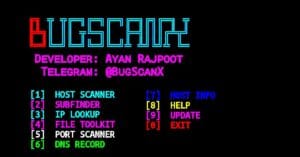
The tool will display the following menu:
[1]  HOST SCANNER
[2]  SUBFINDER
[3]  IP LOOKUP
[4]  FILE TOOLKIT
[5]  PORT SCANNER
[6]  DNS RECORD
[7]  HOST INFO
[8]  HELP
[9]  UPDATE
[0]  EXIT

[-]  Your Choice:
Choose any option from the menu and follow the instructions shown by the tool. Each option provides a different feature for checking hosts, IP addresses, ports, DNS records, subdomains, and other information.
Menu Options
- 1. HOST SCANNER: Scan a target host and check available information.
- 2. SUBFINDER: Find subdomains related to a target domain.
- 3. IP LOOKUP: Look up information related to an IP address.
- 4. FILE TOOLKIT: Use the available file-related features.
- 5. PORT SCANNER: Check ports on a target host.
- 6. DNS RECORD: Check DNS records for a domain.
- 7. HOST INFO: Display information about a target host.
- 8. HELP: Display the help information.
- 9. UPDATE: Check for available updates.
- 0. EXIT: Close BugScanX.
BugScanX can save scan results in a file named after the target host or IP address, such as:
target_host_or_ip.txtYou can view the results file with:
cat file_name.txt
Overview
BugScanX is a simple tool that combines different host, IP, DNS, port, and subdomain features in one menu. It is easy to use and can save the results in a text file for later use.